The key idea
The VPS runs Hermes and its gateway
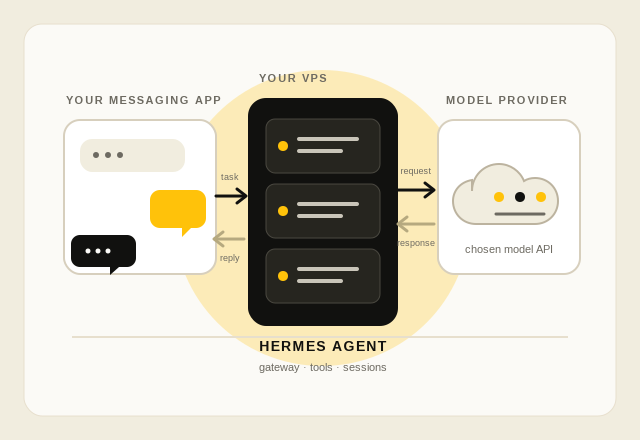
In this API-backed setup, Hermes runs on your VPS while your selected model provider handles inference. Verify a basic chat first, add a messaging platform, then install the gateway as a service.
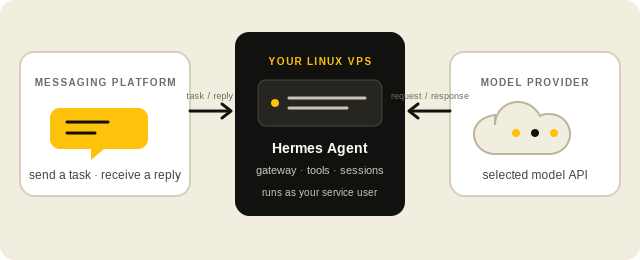
A VPS can keep Hermes Agent and its messaging gateway running while your laptop is offline. You connect to the server over SSH for setup and maintenance, then send messages through a platform you configure. With a hosted model provider, Hermes runs on the VPS and sends model requests to that provider.
This walkthrough uses the official Linux installer and Hermes’ own gateway service. You can connect a model provider with an API key, or use a supported subscription sign-in such as ChatGPT/Codex OAuth without configuring an API key. It does not cover installing a local model or exposing the Hermes dashboard. Commands and supported options can change, so check the current Hermes installation guide if your installer prompts differ.
Decide what the VPS needs to run
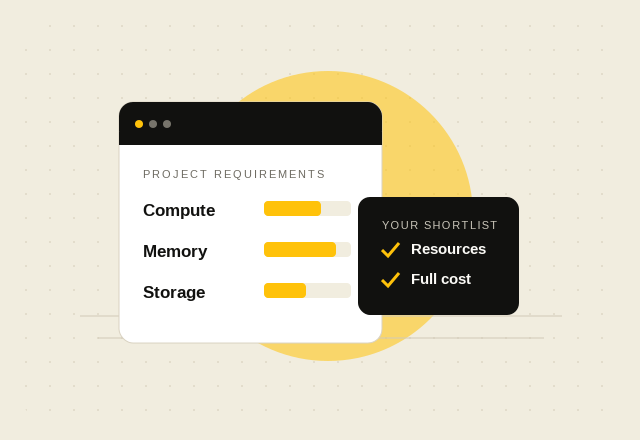
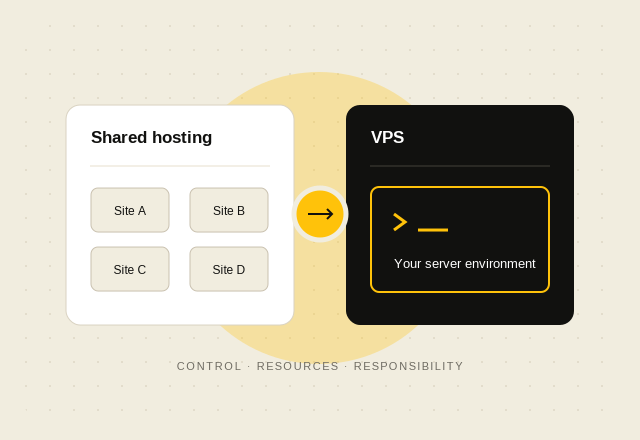
With either a subscription sign-in or an API-backed setup, the VPS runs Hermes, its gateway, and any enabled tools while the selected provider handles model inference. A GPU is therefore not needed for model inference in these hosted setups. If you plan to run a model on the server itself, calculate CPU, memory, storage, and any GPU needs from that model’s own requirements instead.
Choose a plan based on the work you expect Hermes to do. A text-only bot has different resource needs from one that launches Chromium, handles files, or runs overlapping jobs. Leave headroom for the operating system and other services, then observe CPU, memory, and disk use after the tools are enabled. Hermes’ documentation does not set one universal VPS size for every workload.
For a first deployment with a basic messaging gateway and modest activity, VPS Core is a practical starting point, whether you connect through a subscription sign-in or an API provider. Monitor resource use as you add tools or users; browser automation, file processing, or concurrent jobs may call for a larger plan.
The current Hermes quickstart says that models used by Hermes need at least a 64,000-token context window. Check the selected model’s context and tool-calling support before configuring it. Compare the resources available in vpsonClick VPS plans, and use the VPS plan selection guide to map a plan to your workload.
Prepare the server and connect over SSH
Choose a Linux distribution supported by the current Hermes platform support guide. This walkthrough assumes a Linux system with systemd for the background service. Connect using the login account supplied for your server:
ssh <user>@<vps-ip-address>Keep SSH access restricted to the people who administer the server and use your provider’s recommended key-based login. Install system updates and make sure Git, curl, tar, and SHA-256 utilities are available; these are the POSIX installer prerequisites in the current Hermes documentation.
Run Hermes under a dedicated, unprivileged Linux account instead of root. If you use Debian or Ubuntu and the account does not already exist, an administrator can create one and open its login shell:
sudo adduser --disabled-password --gecos "" hermes
sudo -iu hermes
Use that account for installation and for the gateway service so its configuration and sessions stay in its own home directory.
Install Hermes Agent and configure a model
From the Hermes account, run the installer published by Nous Research:
curl -fsSL https://hermes-agent.nousresearch.com/install.sh | bashThis executes the installer from the official Hermes domain. If your change-control process requires inspection, review the installer and its documented behavior before running it. The installer manages Hermes’ Python and Node toolchain and creates a per-user command wrapper. It also installs browser support by default; the installation guide documents --skip-browser for a server where you do not plan to use local browser automation.
After installation, reload the shell if needed and run the health check:
source ~/.bashrc
hermes doctor
Choose a model provider with Hermes’ interactive model selector:
hermes modelSelect ChatGPT or Codex Subscription to sign in with an eligible ChatGPT account using OAuth; this path does not require an OpenAI API key. Availability and usage limits depend on the ChatGPT plan and Codex access, so check your current plan terms. You can also select an API provider and configure its API key; API usage can incur separate charges under the provider’s terms.
To use the separate Nous Portal subscription path, which includes the bundled Tool Gateway, run:
hermes setup --portalHermes stores non-secret settings in ~/.hermes/config.yaml and credentials in ~/.hermes/.env. Keep the credentials file private and do not paste API keys into chat messages, shell history, or a public repository.
Verify a basic chat before adding the gateway
Start Hermes in the terminal:
hermesConfirm the selected provider and model appear, then ask a simple question and check that the reply arrives without an error. If you plan to use tools, test a read-only task first. For example, ask Hermes to list the current directory without changing any files. Run hermes doctor if setup fails, and use hermes model to review the provider selection.
Once a basic conversation works, add other tools or recurring tasks one at a time. That makes it easier to identify a missing credential, unsupported model capability, or system dependency.
Connect a messaging platform
Hermes’ messaging gateway can connect supported platforms such as Telegram, Discord, Slack, WhatsApp, and others. Configure only the platform you intend to use:
hermes gateway setupFollow the wizard for its current credential and authorization steps. Treat bot tokens like passwords: enter them only into Hermes’ setup flow and keep them in the service account’s private configuration. The Hermes messaging guide lists current platform support and gateway commands.
To connect Slack, select Slack in the setup wizard and follow the Slack setup guide to create a Slack app and enable Socket Mode. Slack uses a bot token and an app-level token; keep both private and configure an allowlist with the Slack member IDs that may contact the agent. Socket Mode connects over WebSockets, so this setup does not require a public webhook endpoint.
Restrict who can message an agent that can access tools. Use Hermes’ direct-message pairing or a platform-specific user allowlist, and do not enable an allow-all setting for a production bot. Approve pairing requests only for people you recognize.
Run the gateway as a background service
First, run the gateway in the foreground to confirm the selected platform connects and that an authorized account receives a reply. Stop the foreground process, then install Hermes’ Linux user service:
hermes gateway install
hermes gateway status
The installer can start the service and enable it at boot. If the service needs to keep running after its user logs out and lingering has not already been enabled, ask an administrator to enable systemd lingering for the Hermes account:
sudo loginctl enable-linger hermesUse hermes gateway start and hermes gateway stop to control the default service. Keep the management interface private; do not expose a dashboard or API port publicly just to use the messaging gateway. Follow the official deployment instructions if you intentionally connect a remote interface.
Secure and maintain the deployment
- Keep privileges narrow. Run Hermes as the dedicated service user, not as root. If it will execute commands, review approval prompts and consider the Docker terminal backend for isolation; Docker adds its own installation and resource requirements.
- Limit its working area. Set Hermes’ terminal working directory to a project area rather than a directory containing SSH keys, system configuration, or unrelated customer data.
- Protect secrets and sessions. Keep
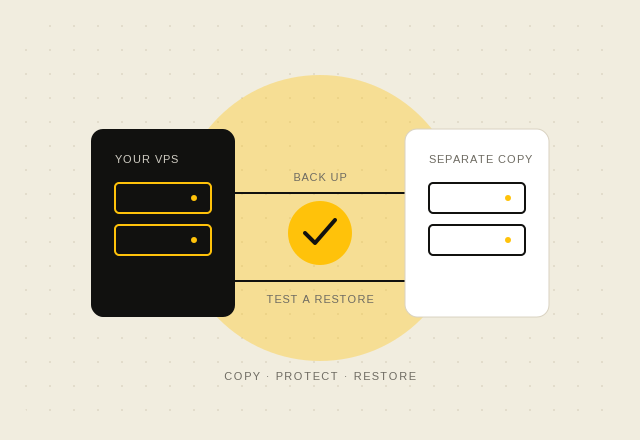
~/.hermes/.envreadable only by its owner, and store backups of Hermes data securely. A profile export does not include credentials, so check the official backup instructions before relying on an export alone. - Check access and logs. Review pairing approvals, user allowlists, and the Hermes logs when a request or tool action looks unexpected.
- Update deliberately. Back up important data, read the current release notes, run
hermes update, then checkhermes doctorandhermes gateway status.
The official security guide covers command approvals, authorization, container isolation, and production gateway settings. Hermes can use powerful tools, so review what the agent can access before connecting it to group chats or unattended tasks.
Hermes Agent on a VPS: common questions
Does Hermes Agent need a GPU on a VPS?
Not for the API-backed setup in this guide: the selected provider runs the model inference. A local model runs on the VPS and has separate hardware requirements. Check the model’s documentation and leave enough capacity for Hermes and any enabled tools.
How much RAM does Hermes Agent need?
There is no single size that fits every configuration. Browser automation, concurrent tasks, and other services change memory use. Start from the tools and workload you plan to run, monitor the VPS, and increase resources if the server approaches its limits.
How do I keep Hermes running after I disconnect from SSH?
Install the gateway as a Linux service with hermes gateway install. Confirm it is active with hermes gateway status and that the service user can keep user services running after logout.
Can I use Hermes from Slack?
Yes. Select Slack in hermes gateway setup, follow the official Slack app setup steps, and allow only the Slack member IDs that should reach the agent. Hermes uses Slack Socket Mode, so a public webhook endpoint is not required.
Are Hermes and model usage free?
Hermes Agent is open-source software. You can sign in through a supported subscription such as ChatGPT/Codex instead of using an API key, subject to that plan’s access and usage limits. API providers and optional tools may have separate charges; check the current terms of the provider you configure.
Choose a VPS for the workload you plan to run
Estimate the server capacity from Hermes’ enabled tools, your expected activity, and any software already on the VPS. Then compare the configured vCPU, memory, storage, and billing terms before ordering. Compare vpsonClick VPS plans and review the amount due for your selected term.